

How to clean your computer?
of reading

Why is it so important to clean your computer? For several reasons, and if you want to keep your computer for a long time, it is best to take care of it.
It's a somewhat thankless TASK you've been putting off for years. But the time has come: You're going to clean your computer inside and out. This means scrubbing all the keys and wiping off fossilized fingerprints from your screen, and much more!
It also means deleting all the files you secretly downloaded when you were trying to stream movies, and finally tidying up your social media feeds.

Two of the most important factors are heat and dust. The latter is not only unsightly, but it can potentially damage or even destroy parts of your computer.
Regularly cleaning your computer will help it run properly and avoid costly repairs.
Over time, dust buildup inside your computer can impair its cooling efficiency, shortening the lifespan of its components. To help your computer stay cool, clean the inside of your computer every 6 to 12 months.

1. How to clean the outside of your computer?
Before doing anything, you need to turn off your device. Also unplug it if you can. This is the most important step. If you don't follow it, you risk seriously damaging the hardware.
A. Cleaning your keyboard
Dust, food, liquid, and other particles can get trapped under your keyboard keys, preventing it from functioning correctly. The basic cleaning tips below can help you keep your keyboard clean.
Unplug the keyboard from the USB or PS/2 port. If the keyboard is connected to the PS/2 port, you will need to turn off the computer before unplugging it.
Turn the keyboard upside down and shake it gently to remove dirt and dust.

Then use a small portable vacuum cleaner. Using the smallest attachment of the vacuum, gently suck up hair, crumbs, and dirt found between the computer keys.
To clean the keycaps, turn off the laptop, then use a pencil eraser to remove dirt and buildup. Afterward, use the vacuum again to clean up any eraser residue between the keys.
Some people use canned compressed air to clean a keyboard. While air can remove debris, it can also push it deeper into the laptop. Once the dirt is inside, there's no way to clean it.
Dampen a cotton cloth or paper towel with rubbing alcohol and use it to clean the tops of the keys. Do not pour alcohol or any other liquid directly onto the keys.
- Reconnect the keyboard to the computer once it is dry. If connecting to a PS/2 port, you will need to connect it before turning on the computer.

B. Cleaning your computer screen
When you want to clean your laptop screen, you have three options:
If you think ordinary water won't be enough, you can prepare a cleaning solution consisting of 50% vinegar and 50% water.
Use a lint-free cloth to dry clean the screen. All laptops use LCD screens. These screens are very difficult to clean with liquids. A lint-free cloth will remove dust and fingerprints.
Use a damp sponge to wipe the screen. Use only water to make the sponge damp. Wring out all excess moisture from the sponge before wiping the screen. Rub gently, with care.
- Get an LCD screen cleaning kit. By getting a cleaning kit, which is perhaps the best option, you receive a lint-free cloth as well as a package containing a wet wipe soaked in the official LCD screen cleaning solution.
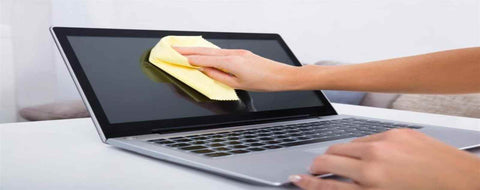
NOTE: Turn off and unplug the laptop before cleaning the screen. Once the screen is cleaned, allow it to dry before closing the lid or using the laptop again.
Never use alcohol- or ammonia-based cleaners on an LCD screen. They can damage the LCD screen, making the image illegible. Also, if you have a tablet PC, the screen's ability to detect input is severely diminished by the use of harsh chemicals.
C. Cleaning your computer mouse
There are two main types of mice: optical and mechanical. They are all cleaned the same way, although mechanical mice require a bit more work.
Optical mice do not require internal cleaning as they do not contain rotating parts. However, they can become sticky over time as dust accumulates near the light emitter. This can cause erratic cursor movement or prevent the mouse from functioning properly.
- Mechanical mice are particularly susceptible to dust and particles that can accumulate inside the mouse, which can make it difficult to track - or move - correctly. If the mouse pointer is not moving smoothly, the mouse may need to be cleaned.

The basic cleaning tips below will help you keep your mouse clean:
Unplug the mouse from the USB or PS/2 port. If the mouse is plugged into the PS/2 port, you will need to turn off the computer before unplugging it.
Dampen a cotton cloth with rubbing alcohol and use it to clean the top and bottom of the mouse.
If you have a mechanical mouse, remove the tracking ball by turning the ball cover ring counter-clockwise.
Then clean the tracking ball and the inside of the mouse with a cotton cloth soaked in rubbing alcohol.
- Allow all parts to dry before reassembling and reconnecting the mouse. If connecting to a PS/2 port, you will need to do this before powering on the computer.
If you just want to quickly clean the mouse, place it on a clean sheet of paper and move it back and forth. Some of the dust and particles should come off onto the paper.

D. Cleaning your mouse pad
If you use a plastic or rubber mouse pad, you can clean it with a cloth dampened with water and a little soap or hand shampoo. If it's fabric, you can give it a soap bath and scrub it with your cloth.
You can also put it in the washing machine, provided you use cold water. For best results, let your mouse pad air dry.

2. How to clean the inside of your computer
The inside of your machine is probably filled with more dirt than the outside, that's for sure. Start your computer and get ready to do the real dirty work. The fun part begins
A. Deleting files in Windows
Windows comes with an excellent storage manager. In the Settings app, click System, then Storage. In this view, you can identify the folders that take up the most space, then sift through them to delete the largest files you no longer need.
Chances are your computer came with a bunch of pre-installed programs that you've never used or don't want. Get rid of them. In the Settings app, click Apps and Features, then look for apps you never use and delete them.

Next, launch the Disk Cleanup utility. It allows you to delete temporary files, which can improve your computer's speed, and system files, which will free up some storage space.
That's enough to gain a few gigabytes of disk space. If you're still running out of space, there's more to do - Windows is full of little hiding places for backups and temporary files. Fortunately, Microsoft has included several different cleaning tools with the operating system, and the company offers an online guide for performing a complete cleanup.
B. Deleting files on Mac
The latest version of macOS comes with its own equivalent of Disk Cleanup. Click the Apple icon in the menu bar and select "About This Mac". When the window opens, click the Storage tab, then the Manage button.
From there, you can delete applications or files you haven't used in a while, and you can move items like photos and media files from your hard drive to the cloud.

The Reduce Clutter option makes recommendations about files you haven't accessed in a while that you can delete. If, after deleting the recommended files, you still need to free up space, try sifting through your files manually to find other offenders.
To perform a manual cleanup, target your Downloads folder, your Applications folder, and the "All My Files" view. For each, launch a Finder window and switch to List mode: Choose View > as List, or click the List View button at the top of the Finder window. From there, you can sort files by size, with the largest files at the top of the list. This will allow you to catch the biggest space-eaters first.

Erase the Past
Clearing your browser history is another way to clean your computer of toxins and hogged space. Go to your preferred web browser, open preferences, and clear the browser history. You may need to reload some images and files the next time you browse, but you'll free up hundreds of megabytes of space.
Finish the Job
After eliminating all the junk, empty the trash can, which will delete these files and applications. Finally, and importantly, restart your computer.

3. Tips for cleaning other computer surfaces
From time to time, you should clean your computer's casing as well as the sides and back of the screen to prevent dust and dirt buildup. Here are some tips you can use to clean these surfaces.
Dust is your computer's main enemy. Use an anti-static cloth to lightly dust your computer's casing.
Do not use furniture cleaners or harsh solvents.
- Use a can of compressed air to blow debris out of the air intake slots.

Diluted ammonia with water - or a glass cleaner consisting primarily of ammonia and water - is a safe cleaning solution for computer surfaces. The milder the solution, the better.
- Clean the monitor casing (but not the screen) by spraying a safe cleaning solution onto a paper towel or anti-static cloth and wiping it downwards.
Do not restrict airflow around your computer. A computer can generate a lot of heat, which is why its casing is equipped with fans to prevent it from overheating.
Avoid stacking papers, books, and other objects around your computer.

Summary:
A laptop is obviously expensive hardware, so it's best to take care of it in various ways.
We have seen that thoroughly cleaning your computer is not a pleasant task. Rigor and seriousness are the keys to a good cleaning. Moreover, to ensure a long life for our PC, and it all depends on our usage, it is advisable to follow these tips 1-2 times a year.
But that's not all, the computer is exposed to shocks, scratches, drops, and other situations that could cause damage.
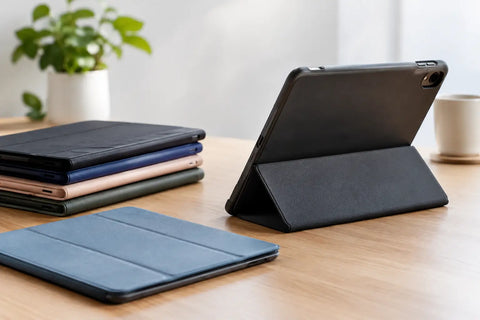
Buying a laptop sleeve therefore becomes essential. We offer a wide range of laptop sleeves. Our models have been designed to suit all models and sizes of laptops. They also come in different colors and a variety of patterns. There's something for everyone.